
Test Your Wi-Fi Signal Strength and Coverage in Just One Simple Step.
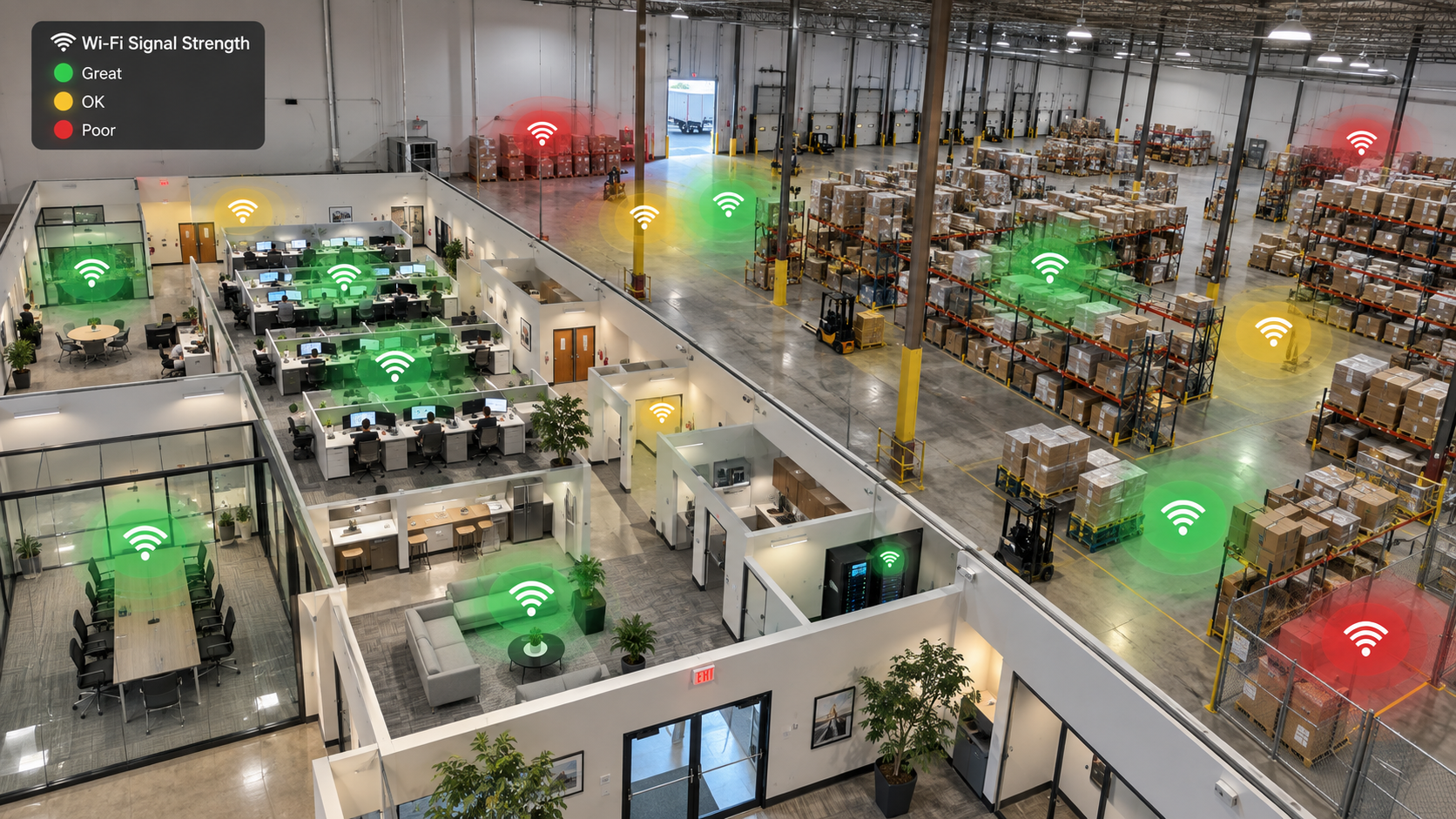
If you've ever wondered why your Wi-Fi feels painfully slow in one part of the office but works great in another, there's a free way to find out — using a simple, built-in tool that's already sitting on every Windows computer, with nothing to download or install. In this tech tip, we'll show you how to test your Wi-Fi signal strength and coverage in one simple step: it checks your Wi-Fi connection every two seconds and shows you, in plain English, how strong your signal is, which access point you're connected to, and how fast your local connection actually is — all while you walk around your office or home with a laptop in hand.
No Installation, No Cost
One of the nicest things about this test is that there's nothing to download, buy, or install. It only works on Windows, but beyond that, everything it needs is already built into the operating system — so it's completely free, and there's no third-party app to trust or installer to run. You're just using a command Windows already ships with.
Step 1: Open PowerShell
Press Windows key + R to open the Run box, type powershell, and hit Enter (or click OK).
This opens a Windows PowerShell window — the built-in command-line tool we'll use to run the test.
Step 2: Paste In the Script and Run It
Copy the script below, click inside the PowerShell window, and paste it in:
& {
Clear-Host
Write-Host 'Wi-Fi test is in progress. Hit Control + C to cancel or simply hit the X to close this window' -ForegroundColor Yellow

function Get-WifiRating {
    param([double]$Rssi)

    if     ($Rssi -ge -55) { return @('Great', 'Green') }
    elseif ($Rssi -ge -67) { return @('Good', 'Green') }
    elseif ($Rssi -ge -75) { return @('OK', 'Yellow') }
    elseif ($Rssi -ge -82) { return @('Bad', 'Red') }
    else                  { return @('Horrible', 'Red') }
}

function Format-WifiSpeed {
    param([string]$Value)

    $speed = 0.0
    $culture = [System.Globalization.CultureInfo]::InvariantCulture
    $style = [System.Globalization.NumberStyles]::Number

    if (-not [double]::TryParse($Value, $style, $culture, [ref]$speed)) {
        return 'Unavailable'
    }

    if ($speed -gt 999) {
        return ($speed / 1000).ToString('0.###', $culture) + ' Gb/s'
    }

    return $speed.ToString('0.###', $culture) + ' Mb/s'
}

$previousBssid = $null
$previousAdapter = $null
$previousChannel = $null
$previousBand = $null
$script:wifiLineCount = 0
$downArrow = [char]0x2193
$upArrow = [char]0x2191

function Complete-WifiLine {
    $script:wifiLineCount++

    if ($script:wifiLineCount -ge 30) {
        Write-Host 'Wi-Fi test is in progress. Hit Control + C to cancel or simply hit the X to close this window' `
            -ForegroundColor Yellow
        $script:wifiLineCount = 0
    }
}

while ($true) {
    # Read each Wi-Fi adapter separately.
    $adapters = @()
    $adapter = $null

    netsh wlan show interfaces | ForEach-Object {
        if ($_ -match '^\s*Name\s*:\s*(.+)$') {
            if ($null -ne $adapter) {
                $adapters += ,$adapter
            }
            $adapter = @{ Name = $matches[1].Trim() }
        }
        elseif ($null -ne $adapter -and
                $_ -match '^\s*(State|Band|Channel|Signal|RSSI|AP BSSID|BSSID|Receive rate \(Mbps\)|Transmit rate \(Mbps\))\s*:\s*(.+)$') {
            $key = $matches[1]
            $value = $matches[2].Trim()

            # Ignore other radios listed under "Colocated APs".
            if ($key -notin @('BSSID', 'AP BSSID') -or
                $value -match '^(?:[0-9A-Fa-f]{2}[:-]){5}[0-9A-Fa-f]{2}$') {
                $adapter[$key] = $value
            }
        }
    }

    if ($null -ne $adapter) {
        $adapters += ,$adapter
    }

    $wifi = $adapters |
        Where-Object { $_['State'] -eq 'connected' } |
        Select-Object -First 1

    if ($null -ne $wifi) {
        $bssid = $wifi['AP BSSID']
        if (-not $bssid) {
            $bssid = $wifi['BSSID']
        }

        if ($bssid) {
            $bssid = $bssid.Replace('-', ':').ToUpperInvariant()
        }

        $channel = $wifi['Channel']
        $band = $wifi['Band']
        $apChanged = $false
        $channelChanged = $false

        # Compare readings only when they belong to the same adapter.
        if ($previousAdapter -eq $wifi['Name']) {
            $apChanged = $previousBssid -and $bssid -and
                ($bssid -ne $previousBssid)

            $channelChanged = $previousChannel -and $channel -and
                (($channel -ne $previousChannel) -or
                 ($previousBand -and $band -and ($band -ne $previousBand)))
        }

        $changeMessage = $null
        if ($apChanged -and $channelChanged) {
            $changeMessage = 'Your device just jumped to a different Wi-Fi access point & channel'
        }
        elseif ($apChanged) {
            $changeMessage = 'Your device just jumped to a different Wi-Fi access point'
        }
        elseif ($channelChanged) {
            $changeMessage = 'Your device just jumped to a different Wi-Fi channel'
        }

        if ($changeMessage) {
            Write-Host $changeMessage -ForegroundColor Red
            Complete-WifiLine
        }

        $previousAdapter = $wifi['Name']
        $previousBssid = $bssid
        $previousChannel = $channel
        $previousBand = $band

        if (-not $bssid) {
            $bssid = 'Unavailable'
        }

        $signal = $null
        $rssi = $null
        $estimate = ''

        if ($wifi['Signal'] -match '(\d+)') {
            $signal = [int]$matches[1]
        }

        if ($wifi['RSSI'] -match '(-?\d+)') {
            $rssi = [int]$matches[1]
        }
        elseif ($null -ne $signal) {
            $rssi = $signal / 2 - 100
            $estimate = '~'
        }

        $download = Format-WifiSpeed $wifi['Receive rate (Mbps)']
        $upload = Format-WifiSpeed $wifi['Transmit rate (Mbps)']

        Write-Host 'Access Point: ' -ForegroundColor Blue -NoNewline
        Write-Host ("{0,-17} " -f $bssid) -NoNewline

        Write-Host 'Channel: ' -ForegroundColor Blue -NoNewline
        Write-Host ("{0,-13} " -f "$($wifi['Band']) ($($wifi['Channel']))") -NoNewline

        Write-Host "Download ${downArrow}: " -ForegroundColor Blue -NoNewline
        Write-Host ("{0,11} " -f $download) -NoNewline

        Write-Host "Upload ${upArrow}: " -ForegroundColor Blue -NoNewline
        Write-Host ("{0,11} " -f $upload) -NoNewline

        Write-Host 'Signal: ' -ForegroundColor Blue -NoNewline

        if ($null -ne $signal) {
            if     ($signal -ge 90) { $rating, $color = 'Great', 'Green' }
            elseif ($signal -ge 66) { $rating, $color = 'Good', 'Green' }
            elseif ($signal -ge 50) { $rating, $color = 'OK', 'Yellow' }
            elseif ($signal -ge 36) { $rating, $color = 'Bad', 'Red' }
            else                   { $rating, $color = 'Horrible', 'Red' }

            Write-Host "${signal}% (" -NoNewline
            Write-Host $rating -ForegroundColor $color -NoNewline
            Write-Host ') ' -NoNewline
        }
        else {
            Write-Host 'Unavailable ' -NoNewline
        }

        Write-Host 'RSSI: ' -ForegroundColor Blue -NoNewline

        if ($null -ne $rssi) {
            $rating, $color = Get-WifiRating $rssi

            Write-Host "${estimate}${rssi}dBm (" -NoNewline
            Write-Host $rating -ForegroundColor $color -NoNewline
            Write-Host ')'
        }
        else {
            Write-Host 'Unavailable'
        }

        Complete-WifiLine
    }
    else {
        Write-Host 'Wi-Fi disconnected or status unavailable.'
        Complete-WifiLine
    }

    Start-Sleep -Seconds 2
}
}
Windows will show a warning about pasting multi-line text into PowerShell:
This is completely normal — it's just PowerShell's standard caution any time you paste more than one line at once. Click Paste anyway to continue and hit enter.
A couple of things to know before you start walking around:
- You need to already be connected to the Wi-Fi network you want to test. The script reads the status of whatever network your computer is currently on — it can't scan networks you haven't joined. Make sure you're on the right network (not a phone hotspot, guest network, or wired Ethernet) before you begin.
- Widen and maximize the PowerShell window before you start. Each reading prints as a single line, and a narrow window makes that line wrap awkwardly, which makes it harder to read at a glance while you're walking.
What You'll See While It's Running
Once it's running, a new line prints every 2 seconds with your access point, channel, download and upload speeds, and your signal quality in two forms — a percentage and an RSSI reading, each with a plain-English rating:
- The reminder message appears every so often, letting you know the test is still running and that you can hit Ctrl+C or close the window whenever you're done.
- The red alert lines appear any time your device jumps to a different access point, a different channel, or both — something that happens automatically behind the scenes on networks with more than one access point, and that you'd normally never see happening.
- The download/upload numbers are your Wi-Fi link speed — how fast your device and your router are talking to each other over the air. That's not the same thing as your internet speed from your provider; you can have a fast, solid connection to your own router and still be on a slower internet plan, or the other way around. If you want to test your actual internet speed, a site like speedtest.net is the right tool for that.
- The signal and RSSI ratings are where you'll see your coverage quality — green for solid, yellow for usable but not great, red for weak or unreliable.
Making Sense of RSSI and Signal Quality
You'll see two numbers for signal quality: a percentage, and something called RSSI (Received Signal Strength Indicator), measured in a unit called dBm. A couple of things trip people up the first time they see RSSI:
- It's always a negative number, and — a little counterintuitively — the closer that number is to zero, the stronger the signal. A reading of -50 is strong; a reading of -85 is weak.
- In real-world conditions, you'll rarely see anything stronger than around -30, even standing right next to the router — that's roughly the practical ceiling.
- It's a logarithmic scale rather than a straight-line one, which is part of why the quality bands below aren't evenly spaced — the difference between -50 and -60 matters a lot more than the difference between -80 and -90.
That's exactly why the script translates the raw numbers into plain-English ratings for you:
| Rating | Signal % | RSSI |
|---|---|---|
| Great | 90–100% | -55 dBm or stronger |
| Good | 66–89% | -56 to -67 dBm |
| OK | 50–65% | -68 to -75 dBm |
| Bad | 36–49% | -76 to -82 dBm |
| Horrible | 0–35% | weaker than -82 dBm |
The percentage and RSSI ratings are calculated independently, so on rare occasions you might see them land one level apart on the same line — that's expected, not a bug.
Walk Your Space (And Even Test From a Desktop)
The real value here comes from actually moving while it runs. Launch it, then walk through your office or home with your laptop and watch the readings change in real time. You'll see exactly where the signal starts to weaken, where a room turns into a dead zone, and — if you have more than one access point — the exact spot where your device hands off from one to another. That's genuinely useful if you've ever wondered why one conference room always has spotty Wi-Fi, or why calls tend to drop in a certain hallway.
You don't need a laptop to use it, either. If you have a desktop PC with a Wi-Fi adapter, this same script works just as well for fine-tuning your setup — for example, testing different orientations of an external antenna to see which direction actually pulls in the strongest signal, instead of just guessing.
Is This Safe to Run?
Here's exactly what this one does, and doesn't do: it only asks Windows a question — it never tells your network anything to do. It repeatedly runs Windows' own built-in netsh wlan show interfaces command, the same command Windows itself uses internally to check your Wi-Fi connection. There's nothing here that changes a setting, reconfigures anything, or modifies your connection in any way. It simply checks the current status every 2 seconds and prints what it finds, until you stop it. If you'd like to verify that yourself, here's exactly what each part of the script does. But for extra peace of mind, paste the entire script to your favorite AI agent and ask for yourself too.
For the Curious: What Each Part of the Script Does
The rating function takes the RSSI number and translates it into one of five plain-English labels — Great, Good, OK, Bad, or Horrible — plus a color, using the thresholds in the table above.
The speed formatter cleans up the raw connection speed numbers Windows reports (in megabits per second), rounding them and automatically switching to gigabits per second once you're over 999 Mb/s — so you see "1.250 Gb/s" instead of "1250 Mb/s."
A handful of setup variables keep track of things between readings — like which access point, channel, and band you were connected to a moment ago, so the script has something to compare against on the next check.
The reminder counter prints that "test in progress" message again every 30 readings, or about every minute, since it checks every 2 seconds — so you always know the test is still running.
The main loop, which repeats every 2 seconds until you stop it, does the following each time through:
- Runs netsh wlan show interfaces which is the same built-in Windows command Windows itself uses to check your Wi-Fi. Nothing here reaches out to any outside server; it's only asking your own computer for information it already has.
- Reads through that output and picks out the details it needs: which adapter you're using, whether it's connected, the radio band and channel, signal percentage, RSSI (on the systems that report it directly), the access point's ID, and your current speeds.
- If you have more than one Wi-Fi adapter, it narrows down to whichever one is actually connected.
- Compares your current access point, channel, and band to the previous reading, and prints an alert if any of them changed.
- Works out your RSSI — using the number reported directly when available, or estimating it from the signal percentage (marked with a "~") when it isn't.
- Formats your download and upload speeds.
- Prints one summary line: the access point, your band and channel, download/upload speeds, and your signal percentage and RSSI, each with its rating.
- Runs the reminder counter.
- If no Wi-Fi connection is found at all, it prints "Wi-Fi disconnected or status unavailable" and keeps checking.
- Waits 2 seconds and starts over — repeating until you press Ctrl+C or close the window.
Nothing Is Saved, Logged, or Sent Anywhere
This test doesn't send any information about your computer or your network to us, to Microsoft, or to anyone else. Everything happens locally, on your own machine — it simply reads your current Wi-Fi status and displays it on screen as you walk around. Nothing is logged, saved, or transmitted anywhere.
That also means there's no built-in record to look back on later — if you want to keep a copy of your results, take a screenshot as you go. Once you close the test window, every reading it showed is gone for good.
Frequently Asked Questions
Why is my Wi-Fi slow in some parts of the office but not others?
Most of the time it comes down to distance and obstacles between your device and the nearest access point — walls, metal shelving, elevators, and the sheer size of the space all weaken the signal as you move further away. If you have more than one access point, it can also come down to which one your device happens to be connected to at any given moment, which isn't always the closest one. The best way to find the actual weak spots is to test your signal as you walk through the space, using the steps above.
How can I test my Wi-Fi signal strength for free?
On a Windows computer, you don't need to download or install anything — Windows already has a built-in command that reports your current signal strength and connection details. Follow the steps above to run it and watch your readings update in real time as you walk around.
What's a good Wi-Fi signal strength (RSSI) to aim for?
As a rough guide, anything from about -55 dBm and stronger is great, down through about -67 dBm is still good for most everyday use, and anything weaker than about -75 to -80 dBm starts to feel unreliable. See the full ratings table above for the exact breakdown this tool uses.
Having Wi-Fi Trouble? We Can Help
If this test shows your signal dropping off in certain rooms, or your connection bouncing between access points more than it should, that's usually fixable with the right access point placement, channel planning, or hardware — and it's exactly the kind of thing we help small and mid-size businesses across Broward and Palm Beach County sort out with our Servers, Networks, Wi-Fi & VPNs service.
For Further Reading
- How to Export and Import All Your Saved Wi-Fi Passwords to a New Windows Computer — move every saved Wi-Fi password to a new Windows computer in one shot.
- Servers, Networks, Wi-Fi & VPNs — network design, Wi-Fi coverage, and secure remote access, sized for what your business actually runs.